Submit a support request
This topic describes how to open a support request with the Replicated team, including information about the fields in the support request form. It also describes how to attach new support bundles to an existing support issue.
For more information about working with support bundles, see Generating Support Bundles.
Overview
You can submit support requests and support bundles to Replicated through the Replicated Vendor Portal.
Replicated recommends that you always provide a support bundle when you open a new support request, and that you attach new bundles to an existing support issue when conditions change or new problems arise. Uploading a support bundle is secure and helps the Replicated support team troubleshoot your application faster. Severity 1 issues are resolved three times faster when you submit a support bundle with your support request.
Prerequisites
The following prerequisites must be met to submit support requests:
-
Your Vendor Portal account must be configured for access to support before you can submit support requests. Contact your administrator to ensure that you are added to the correct team.
-
Your team must have a replicated-collab repository configured. If you are a team administrator and need information about getting a collab repository set up and adding users, see Adding Users to the Collab Repository.
(Recommended) Open a support request from a support bundle
If you open a support request when viewing a bundle on the Vendor Portal Support Bundle Analysis page, the support request form is pre-populated with information from the support bundle and the associated customer license. The support bundle is also automatically attached to the request.
To submit a support request from the Support Bundle Analysis page:
-
In the Vendor Portal, go to the Troubleshoot tab.
-
Select the support bundle that you want to attach to a new support request. If you need to upload the support bundle, click Add support bundle > Upload a support bundle.
-
At the top of the Support Bundle Analysis page, click Submit support ticket.
noteThe Share with Replicated button on the Support Bundle Analysis page does not open a support request. You might be directed to use the Share with Replicated option when you are already interacting with a Replicated team member. For more information, see Provide Support Bundles to Replicated After Opening a Support Request.
-
In section 1 of the support request form, review the pre-populated information and make any changes as needed. For more information about these fields, see Open a Support Request from the Support Page below.
-
Complete any empty fields, including adding an issue title and description.
-
Click Submit support request.
Open a support request from the support page
Replicated support SLAs are a combination of the customer license type, your Replicated plan, which product is impacted, and other considerations. Your answers to the questions in the support request form generate a severity calculation that is posted on the GitHub issue as a label, and potentially result in a page for high severity incidents.
The support page uses a multi-step wizard to guide you through submitting a support request or feature request.
To submit a support request from the Vendor Portal Support page:
-
In the Vendor Portal, go to Support.
-
Select the product area related to your request. The available products depend on your account and may include:
- KOTS: Issues with the KOTS Admin Console or KOTS CLI
- Embedded Cluster: Issues with the Embedded Cluster installer
- kURL: Issues with the legacy kURL installer
- Compatibility Matrix: Issues with cluster and VM creation and usage
- Vendor Portal: Issues with hosted services including Enterprise Portal, Registry/Proxy Registry, and channel/release management
- Helm CLI: Issues with direct Helm installs and the Replicated SDK microservice
- Native Scheduler: Issues with the legacy Replicated Native Scheduler
-
On the self-service page, review the suggested community articles and documentation links to see if your question has already been answered. If you still need help, click Open a support request.
noteYou can also click Make a feature request to submit a feature request instead. Feature requests collect a title, problem description, and an optional proposed solution.
If your team has a collab repository configured, you can also click View open issues and requests to see all submitted issues and feature requests on GitHub.
-
(KOTS, Embedded Cluster, and kURL only) Upload one or more support bundles. The support bundle metadata is used to pre-populate customer information in the request form.
-
Complete the support request form:
Field Description First Name, Last Name, and GitHub Username These fields are only displayed if your Vendor Portal account does not have a GitHub username configured. Your GitHub username is required to access the GitHub collab repo used for support tickets.
Customer Name Search for the name of the customer associated with this support request. This field is available when customer information was provided from a support bundle or from the application context.
Choosing a customer is required to enable some SLA levels that are specific to paid licenses.
Issue Title (Required) The issue title on GitHub.
Problem Description (Required) A description of the issue or problem.
Issue Impact (Required) The impact level of the issue. The available options vary by product:
- KOTS, kURL, Embedded Cluster, and Native Scheduler: Issue in paid production environment, Issue in non-production environment, Any other question
- Compatibility Matrix: Resources are entirely unavailable, A feature or resource is degraded, Any other question
- Helm CLI: Production issue with SDK Microservice, Production issue with Helm install, Non-production issue, Any other question
- Vendor Portal: SaaS Service inoperative, SaaS Service/Feature degraded, Any other question
-
If you selected a high-severity impact level (such as a production or service-inoperative issue), answer the additional assessment questions that are displayed:
Field Description Is this issue currently preventing you from using the product in production? Indicates whether business-critical functionality is completely unavailable.
Has this been reproduced in a different installation/environment? Indicates whether the issue has been confirmed in more than one environment. If the issue is both blocking production and reproducible, the request may be escalated to Severity 1.
Is this blocking a production release of the product? (Compatibility Matrix only) Displayed when the impact level is "Resources are entirely unavailable". Indicates whether the issue is blocking a production release.
Select Cluster/VM (Compatibility Matrix only) Optionally select a cluster or VM from your recent Compatibility Matrix history to associate with the request.
-
Click Submit Request.
If the severity calculation results in a Severity 1 (critical) issue, a confirmation dialog is displayed warning that an on-call engineer will be paged. You can choose to:
- Go back and edit the request details
- Continue and submit as Severity 2 without paging an engineer
- Continue and submit as Severity 1, which pages an on-call engineer
After submission, you receive a link to your support issue where you can interact with the support team.
Provide support bundles to Replicated after opening a support request
You can attach new support bundles to existing support issues when conditions change or new problems arise. This helps the Replicated support team troubleshoot the issue more quickly.
Replicated recommends uploading support bundles through the Vendor Portal rather than uploading bundles to the issue in Github directly. Many support bundles will exceed the Github size limits for file uploads. Additionally, the Vendor Portal provides insights and analysis for uploaded bundles that are beneficial for the support process.
After you open a support request, you can do the following to share additional support bundles with Replicated:
-
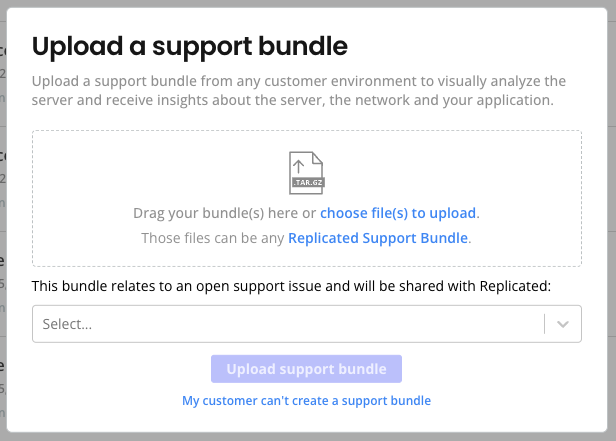
Go to the Troubleshoot tab and click Add support bundle > Upload support bundle. In the Upload a support bundle dialog, select any open support issue to attach the bundle to that issue.
-
Go to any Customer page and select the Support bundles tab. Click Add support bundle > Upload support bundle. In the Upload a support bundle dialog, select any open support issue to attach the bundle to that issue.
-
From the Support Bundle Analysis page for a bundle, click Share with Replicated to allow Replicated support engineers to be able to access the bundle. Then, copy the support bundle URL directly from the address bar in your browser and share the link in the open support issue. The support bundle URL is in the format:
https://vendor.replicated.com/troubleshoot/analyze/2024-08-07@22:10.noteYou do not need to click Share with Replicated to share support bundles URLs internally with members of your Vendor Portal team.